


Version 8


V8 User Manual
FAQs
Arming the System
The arming procedure is used (when leaving the premises) to set devices in your system to cause an alarm should there be a change in their condition. You are turning on the security for an area or building which is unoccupied.
- The arming procedure will vary depending on how your system is programmed.
- Each arming station controls specific area/s.
Only the area/s controlled by an arming station can be armed at that arming station. - Each PIN will only be authorized to arm specific area/s.
When an arming procedure is used, only the area/s assigned to the PIN will be armed. - It is not possible to arm an area with an unsealed input.
If at any time during the arming process the console sounds 7 quick beeps and displays the word unsealed, refer to the section on Unsealed Inputs. - After an area is armed you will have a pre-set time to exit the area before an alarm occurs.
OFF/ON Operation.
To arm the system, you must specify that you are leaving an area, by using the ON key.
Arming Procedure:
1. Before commencing, the display must show:
| There Are No Alarms In This Area |
|---|
| Code: |
2. Enter your PIN
[1] [2] [3] [4] [ON] The area light(s) will illuminate.
3. The result of step 2 will depend on:
– Whether the system has been programmed to display the areas assigned to your PIN.
– Whether the areas to be armed are sealed. (See Unsealed Inputs).
Areas not displayed:
If your system has not been programmed to display the areas assigned to your PIN, any of those areas which were disarmed, will now be armed (provided all inputs were sealed).
The display will return to that shown in step 1.
The area light(s) will illuminate when the arming procedure has been successful.
Areas displayed:
If the areas assigned to your PIN are displayed, any of those areas which are disarmed will be listed.
eg.
| 0-All 1, Office 2, Boardroom 3, Workshop |
|---|
| Enter Area: |
From this display you have several options:
a/ Arm all areas
[0] ~ Select All disarmed areas listed.
[ENTER] ~ Press
This will arm all the areas assigned to your PIN and which were not already armed.
The display will return to that shown in step 1.
b/ Arm individual areas
[?] ~ Enter the Area Number
[ENTER] ~ Press
This will arm the selected area immediately and remove it from the display.
If there are more areas than can be shown on the display the list will now show the next area.
You may arm any of the areas listed by selecting them in this way.
When arming is complete, press ENTER to return to the display shown in step 1.
c/ Cancel the function
[ENTER] ~ Press
This will cancel the function and return you to the display shown in step 1. If you have already armed areas prior to using this function, the areas will remain armed.
d/ Display more areas
[NEXT] ~ Press
This will display the next disarmed areas in the list and update the information. Select from these areas to arm the individual area (as shown in b/ above) or continue to press NEXT to view all the areas and return to the first display.
4. The area light(s) will illuminate when the arming procedure has been successful.
Unsealed Inputs (When arming your system)
It is not possible to arm (or disarm, if your system is programmed that way) an area unless all the inputs in that area are sealed, as an unsealed input would usually set off an alarm. For example, all the doors and windows must be closed.
If any input is unsealed when you try to arm or disarm an area, The Challenger console will sound 7 quick beeps and will display the unsealed inputs.
Unsealed inputs are listed either:
One at a time
| Unsealed On 6. Front Door |
|---|
| NEXT or ENTER |
or
As a list of numbers
| Unsealed On 6, 7, 9. |
|---|
| Input No: |
From either display:
[NEXT] ~ Update the list of unsealed inputs and display the next inputs in the list (if any)
or
[?][ENTER] ~ Display the input name in full.
or
[ENTER] ~ Exit the function and return to the display shown when you were attempting to arm the system.
After you have determined which inputs are unsealed, you must seal them (eg. close door) then exit this display and try again to arm the system.
Note: If you are unable to seal an input, refer to Isolate Inputs.
Challenge Menu
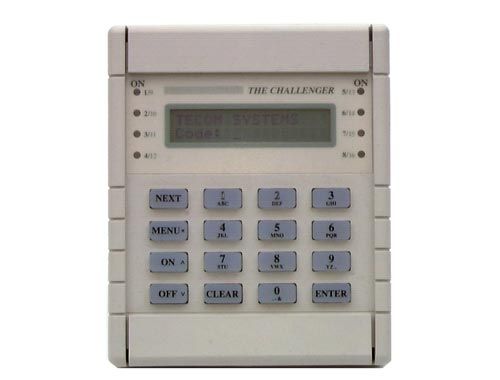
The Challenger menu has 24 options available for performing various functions. Some of the functions are specific only to certain installations, while others may not be authorized to you. It is therefore unlikely that you will see all the menu options when you access the menu, but only those which have been programmed to be available when your PIN is used.
To display the menu options available to you:
1.Before commencing, ensure that the prompt below is shown on the bottom line of the display:
Code:
2. [MENU*] ~ Press
The display will show:
| To Access Menu Enter Code |
|---|
| Code: |
3. [1] [2] [3] [4] ~ Enter your PIN
[ENTER] ~ Press
The display will show:
| “0”-Exit “ENTER”-Down “*”-Up |
|---|
| 0-Exit, Menu: |
4. [ENTER] ~ Move forwards one by one through the menu options.
or
[MENU*] ~ Move backwards one by one through the menu options.
or
[0][ENTER] ~ Exit the menu and return to the display shown in step 1
Note: When scrolling through, each menu option will be displayed.
eg.
| 10-Isolate |
|---|
| 0-Exit, Menu: |
Selecting a Menu Option:
[?] ~ Enter the option number
[ENTER] ~ Press
Note: The option need not be shown on the display. If you know the option number you need not move to it to select it.
Exit a menu option:
[ENTER] ~ Press
This will return you to the menu.
Exit the Menu:
[0] ~ Press
[ENTER] ~ Press
This will return you to the original display shown in step 1 of how to display menu items.
Note:
- If you access the menu and do not use any keys for two minutes, the menu will be exited. It is good practice to ensure you exit the menu using 0 ENTER rather than the time out facility. If anyone else uses the menu before it times out, the functions they use would be logged against your PIN.
- If you attempt to select an option which is not authorized to your PIN, the display will show the message: You are unauthorized for this function
- Although you may be authorized to access a menu option, you may not be allowed to access all the information it provides. You will only be allowed to access information on the areas assigned to your PIN.
Clear Alarm Memory
LOCAL ALARMS
A local alarm is one which occurs when an area is occupied. The circumstances causing the alarm need to be checkedand can possibly be rectified without the need to contact a remote monitoring station.
The alarm is therefore transmitted only within the building and not relayed to a remote monitoring station.
eg. A local alarm could be caused by opening a fire door which is monitored 24 hours a day
When a local alarm occurs:
– The console will emit a continuous tone until the local alarm is acknowledged.
– The display will show the following:
| ,Local Alarm |
|---|
| Code: |
To determine the cause of the alarm:
[ENTER] [ENTER] ~ Press (twice)
The inputs causing the alarm are listed either:
One at a time
eg.
| Local Alarm On A4, Rear Fire Door |
|---|
| NEXT or ENTER |
or
As a list of numbers
eg.
| Local Alarm On A4, A5, A9. |
|---|
| Input No: |
From either display:
[0][ENTER] ~ Acknowledge the local alarm (see below).
or
[NEXT] ~ Update the list of inputs and display the next inputs in the list (if any).
or
[?][ENTER] ~ Display the input name in full.
Acknowledge the local alarm:
You must acknowledge the local alarm to stop the console tone.
[ENTER] [ENTER] ~ Press (twice) The input/s causing the alarm are listed.
[0] ~ Enter
[ENTER] ~ Press
This will acknowledge all local alarms, stop the tone and return the display to There Are No Alarms In This Area.
Reset the local alarm:
To ensure the local alarm does not recur, you must rectify whatever was causing it. ( eg. close door)
The A preceding the input number on the display will be shown only on inputs where the local alarm has not been acknowledged.
Re-alarm:
If your system has been programmed with a reminder on local alarms, it will re-alarm after a pre-set time unless the cause has been fixed. It will continue to re-alarm, regardless of acknowledgment each time, unless the alarm cause is fixed.
When a re-alarm does occur, the letter preceding the input number will not be shown.
ALARM
Alarm is the state of your security system when a device has been activated by a breach of security.
When an alarm occurs:
– An area light will flash to indicate which area the alarm is coming from.
– The display will show the following message on the second line:
Code:
Note: When an alarm occurs, There Are No Alarms In This Area is removed from the top line.
Inputs in Tamper Alarm will be displayed with a T in front of the input number.
To determine the cause of the alarm:
[ENTER] [ENTER] ~ Press (twice)
The inputs causing the alarm are listed either:
One at a time
eg.
| Alarm On 1. Workshop PIR Detector |
|---|
| NEXT or ENTER |
or
As a list of numbers
eg.
| Alarm On 1, 2, 3. |
|---|
| Input No: |
From either display:
[NEXT] ~ Update the list of inputs in alarm and display the next input(s) in the list (if any).
or
[0][ENTER] ~ Stop cameras operating and return to the initial display showing Code: etc.
or
[?][ENTER] ~ Display the input name in full.
or
[ENTER] ~ Return to the initial “Code” display.
Reset an Alarm:
1. Before commencing, the display must show:
Code:
2. Enter your PIN
[1] [2] [3] [4] [OFF]
3. If the reset function is successful:
– The area light stops flashing and returns to the state it was in before the alarm occurred.
– The display will show:
| There Are No Alarms In This Area |
|---|
| Code: |
There Are No Alarms In This Area
Code:
4. If the reset function is not successful:
– The display will show the input/s causing the alarm:
e.g.
| Alarm On 1. Workshop PIR Detector |
|---|
| NEXT or ENTER |
This indicates that the input is still unsealed and needs to be re-sealed before attempting to reset the alarm.
From this display: Refer to the procedure “To determine the cause of the alarm”, and re-seal the input/s before attempting to reset the alarm again.
Notes:
- If the alarm conditions are no longer valid (false alarm), and the alarm has been reset, it is important that you contact your monitoring company to ensure that no further action is taken by them.
- If you are unable to reset an alarm because of a faulty input, refer to the section on Isolate Input – Menu Option 10.
- If you reset an alarm before determining it’s cause, you may use the function Quick Alarm Historyto check alarm details.
- You can only reset an alarm for an area which is assigned to your PIN. If you are unable to reset the alarm, ensure that the flashing area light is for an area you can access with your PIN. If not, your attempt to reset the alarm will result in you arming/disarming the system.
QUICK ALARM HISTORY
This function provides a list of past alarm events.
It is a fast and simple way to determine the location of the input which caused an alarm. This information may be necessary where you have to reset an alarm without first checking the cause.
1. Before commencing, the display must show:
| There Are No Alarms In This Area |
|---|
| Code: |
Note: You cannot access alarm history if there is currently an alarm condition.
2. [ENTER] [ENTER] ~ Press (twice)
The display will show the following details of each alarm: (The most recent alarm is shown first)
The time the alarm occurred as hour & minutes – HH:MM.
The date the alarm occurred as day & month – DD:MM.
The type and location of the alarm.
eg.
| *13:23 31/10 LOCAL ALARM Input 1 Fire D> |
|---|
| 1-Scan, 0-Exit |
*13:23 31/10 LOCAL ALARM Input 1 Fire D>
1-Scan, 0-Exit
3. From the history display it is possible to :
[ENTER] ~ Move backwards through the history, one event at a time, frommost recent alarm to oldest alarm.
[NEXT] ~ Move forwards through the history, one event at a time.
or
[0] ~ Exit the history and return to the display showing There Are No Alarms In This Area
or
[1] ~ Scan the display to view the complete input name where the alarm has occurred.
Disarming The System
Disarming your system is turning off those devices which would cause an alarm if they were left on when the building is occupied.
Note that the security system is not necessarily turned off but that other devices may still operate which will cause an alarm under different circumstances.
Disarming changes your system to Access. i.e. The area/building is occupied and the security system has been set to allow normal access.
- The disarming procedure will vary depending on how your system is programmed.
- Each arming station controls specific area/s. Only the area/s controlled by an arming station can be disarmed at that arming station.
- Each PIN will only be authorized to disarm specific area/s. When a disarming procedure is used, only the area/s assigned to the PIN will be disarmed.
- If at any time during the disarming process the console sounds 7 quick beeps and displays the word unsealed, refer to the section on Unsealed Inputs.
- On entering the area, the system will allow you a pre-set time to disarm before an alarm occurs.
- If there is a current alarm condition when you disarm your system, the alarm will be reset. To determine the cause of the alarm, use the function Quick Alarm History.
OFF/ON Operation
To disarm the system, you must specify that you are entering an area, by using the OFF key.
Disarming Procedure:
1. Before commencing, the display must show:
| There Are No Alarms In This Area |
|---|
| Code: |
There Are No Alarms In This Area
Code:
2. Enter your PIN
[1] [2] [3] [4] [OFF] The area light(s) will extinguish.
3. The result of step 2 will depend on:
– Whether the system has been programmed to display the areas assigned to your PIN.
– Whether the areas to be disarmed are sealed. (See Unsealed Inputs).
Areas not displayed:
If your system has not been programmed to display the areas assigned to your PIN, any of those areas which were armed, will now be disarmed (provided all inputs were sealed).
The display will return to that shown in step 1.
Areas displayed:
If the areas assigned to your PIN are displayed, any of those areas which are armed will be listed.
eg.
| 0-All 1, Office 2, Boardroom 3, Workshop |
|---|
| Enter Area: |
From this display you have several options:
a/ Disarm all areas
[0] ~ Select All armed areas listed.
[ENTER] ~ Press
This will disarm all the areas assigned to your PIN and which were not already disarmed. The display will return to that shown in step 1.
b/ Disarm individual areas
[?] ~ Enter the Area Number
[ENTER] ~ Press
This will disarm the selected area immediately and remove it from the display.
If there are more areas than can be shown on the display the list will now show the next area.
You may disarm any of the areas listed by selecting them in this way.
When disarming is complete, press ENTER to return to the display shown in step 1.
c/ Cancel the function
[ENTER] ~ Press
This will cancel the function and return you to the display shown in step 1. If you have already disarmed areas prior to using this function, the areas will remain disarmed.
d/ Display more areas
[NEXT] ~ Press
This will display the next disarmed areas in the list and update the information. Select from these areas to disarm the individual area (as shown in b/ above) or continue to press NEXT to view all the areas and return to the first display.
4. The area light(s) will illuminate when the disarming procedure has been successful.
Unsealed Inputs (When arming your system)
It is not possible to arm (or disarm, if your system is programmed that way) an area unless all the inputs in that area are sealed, as an unsealed input would usually set off an alarm. For example, all the doors and windows must be closed.
If any input is unsealed when you try to arm or disarm an area, The Challenger console will sound 7 quick beeps and will display the unsealed inputs.
Unsealed inputs are listed either:
One at a time
| Unsealed On 6. Front Door |
|---|
| NEXT or ENTER |
or
As a list of numbers
| Unsealed On 6, 7, 9. |
|---|
| Input No: |
From either display:
[NEXT] ~ Update the list of unsealed inputs and display the next inputs in the list (if any)
or [?][ENTER] ~ Display the input name in full.
or [ENTER] ~ Exit the function and return to the display shown when you were attempting to disarm the system.
After you have determined which inputs are unsealed, you must seal them (eg. close door) then exit this display and try again to disarm the system.
Note: If you are unable to seal an input, refer to Isolate Inputs.
Door Opening Option
A Challenger console may be used to open a door, by entering a door code.
Your door code is related to your PIN. It varies, depending on whether your PIN has been programmed to allow you to arm/disarm your system, as well as open doors.
To open a door:
The bottom line of the display must show:
Code:
3 4 5 6 ~ Enter your door code. (See Note 3)
[ENTER] ~ Press.To open the door only. (See Note 2)
or
[OFF] ~ Press. To disarm the security and open the door if your full PIN code is entered.(See Notes 2 & 3)
or
[ON] ~ Press. To arm the security and open the door if your full PIN code is entered.(See Notes 2 & 3)
If the door is only allowed to be opened for a preset time, the display may show.
eg.
| Suppressed |
|---|
| Code: |
Suppressed
Code:
If the door is closed prior to the end of the maximum open time, the word “Suppressed” will be removed from the displayand the console will sound the warning buzzer for 3 seconds to indicate that the door is no longer suppressed.
If the door is not closed at the end of the suppression time, the display will show “Suppression Ending” on the top line of the display.
The console will sound the warning buzzer for a preset time to enable you to close the door or re-enter your PIN to extend the suppression time.
Notes:
- If the console sounds 7 quick beeps when you enter your door code, an invalid code has been entered, or the code is not valid at this arming station.
- A door code will only open doors programmed to be opened by that code. i.e. The Door Group assigned to the user may not allow access to all doors.
- In most systems with access control, an “Alarm Code Prefix” is used. The Alarm Code Prefix is the number of digits that are to be left off the front of your full PIN code to make the door code and is programmed by the installer.
e.g.Alarm Code Prefix = 2 digits.Full PIN code = 123456.Door PIN code will therefore be 3456.
Duress Option
A duress facility is available on The Challenger but will operate only if your system has been programmed to use it.
The duress facility is a device which will activate a silent signal to security personnel.
If you are asked, under threat, to breach your system security (eg. being forced to disarm the system), you are able to do so in a way that will also activate the system duress facility.
This is done by using a duress digit in conjunction with your PIN.
The duress digit is the last digit of your PIN, plus one (1).
eg. PIN = 1234 – duress digit = 5
PIN = 2222 – duress digit = 3
If the last digit of your PIN is 9, then the duress digit is 0.
To Activate Duress:
[1] [2] [3] ~ Enter all but the last digit of your PIN.
[5] ~ Enter the duress digit.
[OFF] ~ Press
or
[ON] ~ Press
or
[ENTER] ~ Press
When duress has been activated, the display will show:
| …,There Are No Alarms In This Area |
|---|
| Code: |
Reset Duress:
To reset the duress facility (ie. Turn off the signal), enter a valid PIN code. The display will return to There Are No Alarms In This Area etc. The …, will be removed.
Notes:
- If Duress was activated under conditions which are no longer valid (false alarm), and it has been reset, it is important that you contact your monitoring company to ensure that no further action is taken by them.
- Use of your PIN with the duress digit will still activate the functions associated with the PIN.
Indicator Lights
There are a number of red indicator lights (or LEDs) on the Challenger console.
These lights, together with the information shown on the display, allow you to determine the system status at a glance. Not all indicator lights are available on all arming stations.
Area Lights:
The area lights, one for each of the possible security areas, indicate the status of the particular area.
Area Lights:
The area lights, one for each of the possible security areas, indicate the status of the particular area.
| Light ON: | Indicates that the area is unoccupied and armed. |
|---|---|
| Light OFF: | Indicates that the area is occupied and the security system has been set to allow normal access |
| Light FLASHING slow: | Indicates that an alarm has occurred in the area while in access.(Note: Does not flash for local alarms that do not require a code to resete.g. Type 15 or 41) |
| Light FLASHING fast: | Indicates that an alarm has occurred in the area while in secure. |
System Alarm Lights: (available on some arming stations only)
The system alarm lights indicate a breach of security. One of the system alarm lights will flash when an alarm has occurred.
(An areas armed light will also flash to indicate the location of the alarm).
| ACCESS Alarm light: | Will flash when an alarm has occurred in an area which is occupied and the security system has been set to allow normal access. |
|---|---|
| 24 HOUR Alarm light: | Will flash when an alarm has occurred in an area where an input device has been programmed for 24 hour monitoring. |
| SECURE Alarm light: | Will flash when an alarm has occurred in an area which is unoccupied and armed. |
| TAMPER Alarm light: | Will flash when an alarm has occurred due to tamper. |
System Faults: (available on some arming stations only)
Any system faults will be displayed on the arming station consoles if the arming station has an LCD fitted and/or “System faults” LEDs.
| Comms Fail: | Will display if there is a failure in the communications between The Challenger and aremote monitoring station. |
|---|---|
| RAS Fail: | Will display if a remote arming station is off-line. |
| DGP Fail: | Will display if an access controller or data gathering panel is off-line. |
| Battery Fail: | Will display if the auxiliary battery power is found to be low on cutover to battery aftermains power is lost. |
Isolating & De-Isolating Inputs
ISOLATE INPUT – MENU OPTION 10
This function is used to isolate inputs ie. exclude them from functioning as part of the security system.
An input would be isolated because it is faulty or broken and by isolating it, you would stop it causing an alarm.
The function provides a list of unsealed inputs for you to select an input to isolate. A faulty or broken input is usually unsealed, however, sealed inputs may also be isolated if you know the input number.
No Unsealed Inputs:
The display will show:
| All Inputs are Sealed |
|---|
| Isolate No: |
[?][ENTER] ~ Isolate the selected input.
or
[ENTER] ~ Return to the menu.
Unsealed inputs will be listed either:
One at a time
eg.
| Unsealed On 4. PIR In Managers Office |
|---|
| Isolate No: |
or
As a list of numbers
eg.
| Unsealed On 1, 2, 4. |
|---|
| Isolate No: |
From either display:
[?][NEXT] ~ Isolate the selected input (this will remove the input from the display and replace it with the next unsealed input in the list – if any).
or
[NEXT] ~ Update the list of inputs and display the remaining inputs in the list (if any).
or
[ENTER] ~ Return to the menu.
Note:
1. If the unsealed inputs are shown as a list of numbers, it is not possible to display the name of the input.
2. If an attempt is made to isolate an input which is already isolated, the request appears as if it is processed but it is not logged in the history and the input remains isolated.
3. As soon as an input which is in alarm is isolated, the alarm is reset.
4. Using Panel Link changes the standard numbering system seen here, to reflect that of Panel Link’s system.
DE-ISOLATE INPUT – MENU OPTION 11
This function is used to de-isolate inputs ie. Return them back to functioning as part of the security system.
An input is isolated because it is faulty or broken and when it is repaired, it must be de-isolated.
The function provides a list of isolated inputs for you to select an input to de-isolate. Inputs which are unsealed are shownon the list with U in front of the input number. It should be noted that de-isolating an unsealed input may cause an alarm.
No Isolated Inputs:
The display will show:
| All Inputs are De-isolated |
|---|
| Deisolate: |
[ENTER] ~ Return to the menu.
Isolated inputs will be listed either:
One at a time
eg.
| Isolated On 4, Beam Across Loading Bay |
|---|
| DeIsolate: |
or
As a list of numbers
eg.
| Isolated On 1, U2, 4. |
|---|
| DeIsolate: |
From either display:
[?][ENTER] ~ De-isolate the selected input (this will remove the input from the display and replaceit with the next isolated input in the list – if any).
or
[NEXT] ~ Update the list of inputs and display the remaining inputs in the list (if any).
or
[ENTER] ~ Return to the menu.
Note:
1. Using Panel Link changes the standard numbering system seen here, to reflect that of Panel Link’s system.
2. A “U” displayed before the input number indicates that the input is unsealed.
3. Do not De-isolate the input before checking the circumstances, as de-isolating an unsealed input may cause an alarm.
INPUTS ISOLATED
This function is used to display details of all isolated inputs. An isolated input is one which is excluded from functioning as part of the security system. It would be isolated because it is faulty or broken and by isolating it you would stop it causingan alarm. This function would therefore be used to determine which inputs are not operational and need attention.
No isolated inputs:
The display will show:
| No Isolated Inputs |
|---|
| Press ENTER |
[ENTER] ~ Return to the menu.
or
[NEXT] ~ Update the status.
Isolate inputs are listed either:
One at a time
eg.
| Isolated On 4. Beam Across Loading Bay |
|---|
| NEXT or ENTER |
or
As a list of numbers
eg.
| Isolated On 1, 2, 6. |
|---|
| Input No: |
From either display:
[NEXT] ~ Update the list of inputs and display the next inputs in the list (if any).
or
[ENTER] ~ Return to the menu.
or
[?][ENTER] ~ Display the input name in full.
Note: Using Panel Link changes the standard numbering system seen here, to reflect that of Panel Link’s system.
Program Users
PROGRAM USERS –
This function allows you to add, delete or create a user.
Your system may have been set up to require two authorised users to enter this menu.
The user programming includes a record of:
- The Challenger user (or card) number. This is a number between 1 and 11,466* which is used by the system tolink a PIN or card to the functions it will perform and the doors it can enter. Note: When programming cards, the ID number programmed in the card is the user number(Unless your system uses a card offset).
- The user’s alarm group which determines the user’s area/s, & alarm control functions. eg. Manager, Staff etc. (Note:Your own alarm group may or may not allow you to program PIN codes. If it does allow use of the function,there may still be restrictions on which alarm groups you are allowed to update)
- The users door group which determines which doors the user has access to.
- The users floor group which determines which floors the user has access to.
- The user’s name (some users only).
- The users PIN code (some users only). Note: Card ID numbers are NOT programmed as the PIN code.
If your system requires two users to access (dual custody) this option, the display will show:
| Enter Second Code |
|---|
| Code: |
[?][?][?][?] ~ Enter second users PIN
[ENTER] ~ Press
The display will show:
| 1 – Delete 2 – Display 3 – Create |
|---|
| Option: |
[?][ENTER] ~ Select the function you wish to perform. See Note 1
or
[ENTER] ~ Return to the menu.
*Note: Only 50 users with name, PIN and/or card can be programmed in a system with standard memory.
In a system with expanded memory:
- Only the 1st 200 users can have their name programmed to their user number.
- Only the 1st 1000 users can have a PIN assigned to them.
- Users 1 to 1000 can have a PIN and/or card.
- Users 1001 to 11,466 can only have a card.
DELETE A USER
1. The display will show:
| Delete User |
|---|
| User No: |
2. You may delete the user by entering the system user number.
[?][?][?] ~ Enter the user number.
[ENTER] ~ Press
This will delete the user.
3. You can repeat step 2 to delete other users or
[ENTER] ~ Return to the display shown in step 1.
Notes:
- A master code cannot be deleted.
- You cannot delete a user unless your alarm group authorized you to do so.
DISPLAY A USER
1. The display will show:
| Display User |
|---|
| User No: |
2. [?][?][?][ENTER] ~ Enter the system user number.
3. The display will show the user’s alarm group*.
eg.
| *-View, Alm Grp:12,Forman |
|---|
| Press ENTER |
[ENTER] ~ Press
4. The display will show the user’s door group*.
eg.
| Door Group: 2 |
|---|
| Press ENTER |
[ENTER] ~ Press
5. The display will show the user’s floor group*.
eg.
| Floor Group: 1 |
|---|
| Press ENTER |
[ENTER] ~ Press
6. If your system is programmed with the ability to assign special User Flags to the Users, the display will now showthe User Flags in sequence. See “CREATE (and CHANGE) A USER” for User Flag details.
7. The display will show the user’s name (if any and the user number is 200 or less)
eg.
| Your Name is Ann Brown, (*)-End |
|---|
| Ann Brown |
[ENTER] ~ Press
8. The display will show the user’s PIN (if any and user number is 1000 or less).
eg.
| Pin Code: 1234 |
|---|
| Press ENTER |
[ENTER] ~ Return to the display shown in step 1.
CREATE (and CHANGE) A USER
The procedure to create a user may vary depending on whether yor are creating a user higher than 200 or higher than 1000.
1. The display will show:
eg.
| Create User |
|---|
| User No: |
2. The display will show the user’s alarm group*.
eg.
| *-View, Alm Grp:1-No Access |
|---|
| Alarm Group: |
[NEXT] ~ Display the list of alarm groups that you can issue to a user (if any).
or
[?][ENTER] ~ Select the number of the alarm group to be issued to this user. See Note 2
or
[ENTER] ~ Press. Move on to next display.
3. The display will show the user’s door group*.
Card Users must always have a valid door group assigned in order to perform alarm control or door functions.
eg.
| Door Group: 0 |
|---|
| Door Group: |
[?][ENTER] ~ Select the door group number to be issued to the user (if any).
or
[ENTER] ~ Press. Move on to next display.
4. The display will show the user’s floor group*.
eg.
| Floor Group: 0 |
|---|
| Floor Group |
[?][ENTER] ~ Select the floor group number to be issued to the user (if any).
or
[ENTER] ~ Press. Move on to next display.
5. If the user number that you are programming is higher than 1000, and User Flags are not displayed in your system,then all options available have been programmed and the display will return to step 1.
If the system has been programmed so that users don’t have name files or if you are programming a user higherthan 200 and User Flags are not displayed, skip to step 9.
6. If your system is programmed with the ability to assign special User Flags to the Users, the display will now showthe User Flags in sequence.
The User Flags are as follows:
| Dual Custody | If set to YES the user will always require a second valid user code/card to be entered to perform any alarm or access control function at Doors 17 to 64. |
|---|---|
| Guard | If set to YES the user’s code/card can only perform functions at Doors 17 to 64 when usedin conjunction with a “Visitor” code/card. |
| Visitor | If set to YES the user’s code/card can only perform functions at Doors 17 to 64 when usedin conjunction with a “Guard” code/card. |
| Trace User | If set to YES all alarm & access functions performed by the user at Doors 17 to 64, willcause a “Trace” message to be sent to the management computer. |
| Card Only | If set to YES the user will NOT be able to use the PIN code. This allows the PIN codefield to be used to program cards on formats not normally compatible with the Challenger,when a special reader is used. |
| Privileged | If set to YES the User’s code/card will over-ride any “Anti-Passback” restrictionson Doors 17 to 64. |
| Long Access | If set to YES the user will be allowed extended door access times at Doors 17 to 64.e.g. To allow the door to remain open longer for disabled access. |
The display will show:
| YES – Dual Custody |
|---|
| * – Change 0 -Skip |
[*] ~ Change YES to NO, or NO to YES and display the new setting.
[ENTER] ~ Press. Save the displayed setting and move to the next User Flag.
[0] ~ Save the displayed setting; skip the remaining user flags and move on to the next Step.
The Programming procedure detailed above is the same for all the User flags.
7.If the user number that you are programming is higher than 1000, then all options available have been programmed and the display will return to step 1.
If the system has been programmed so that users don’t have name files or if you are programming a user higherthan 200, skip to step 9.
The display will show.
Your Name is , (*)-End
This allows you to enter a user’s name of up to 16 characters, by using the text option on the keypad. Keys 1 to 9 have alphabetical characters printed above them. To enter a letter, press the key the number of times relative to the position of the letter. Both upper and lower case letters are available as well as the numerical values.
After entering a letter in the name, press ENTER to move the cursor to the next position.
[?] [?] [ENTER] ~ Enter each letter of the user’s name followed by ENTER.
or
[ENTER] ~ To move the cursor to the position after the name.
or
[MENU*] ~ Save the name. (And display the new name if programmed/changed)If the name has been changed, only letters preceding the cursor will be saved.
and
[MENU*] ~ If name is programmed/changed. Save the name and move to the PIN code display.
CAUTION
When programming name text, the “ENTER” key is ONLY used to move the cursor.
Make sure that the procedure above is followed carefully when programming name text.
9. The display will show.
| Pin Code: |
|---|
| Code: |
[?] [?] [?] [?] ~ Enter the PIN for this user. See Notes 3, 4, 5 & 6.
[ENTER] ~ Save and display the PIN code.
[ENTER] ~ Return to the display shown in step 1.
Notes:
- You cannot create a user unless your alarm group authorizes you to do so.
- You cannot assign an alarm group to a user unless the alarm group has the option “Can this Alarm Groupbe Assigned to Users” set to YES and your alarm group has all the “Areas” & “User Menu Options” of the alarm group you wish to assign. If the alarm group you wish to assign has “Alarm System Control”& “Modem Access” set to YES, then your alarm group must have these features set to YES also.
- You cannot program a PIN or User number that already exists.
- You cannot program a PIN that will conflict with another user’s duress code.(Refer to the section on Duress).
- You cannot program a PIN that will conflict with another user’s door code.(Refer to the section on Opening a Door).
- A User who will be allowed to both open doors and arm/disarm the system, should have a PIN of at least 5 digits. (Refer to the section on Opening a Door).
Setting Date & Time
TIME AND DATE – Menu Option 15
This function is used to program a new time and date.
The time and date are not visible during normal use of The Challenger however all internal functions are reliant on them.
A new date or time would only need to be programmed when The Challenger is first installed or if the time needs to be adjusted for daylight saving.
| Time options: | 1. Display | 2. Set | 3. DST (Daylight Saving Time) | 4. Correct |
|---|
The time is programmed for a 24 hour clock.
Option 1. Display and 2. Set
1) The display will show:
| Time & Date hh:mm dd/mm/yy Xxxxday |
|---|
| Hours: |
(Where hh:mm dd/mm/yy Xxxxday = the current time and date held by the system as hour, minute, day,month, year and day of the week.)
[?][?] ~ Select the correct hour.
[ENTER] ~ Update the hour and go the next display.
2) The display will show:
| Time & Date hh:mm dd/mm/yy Xxxxday |
|---|
| Minutes: |
[?][?] ~ Select the correct minutes.
[ENTER] ~ Update the minutes and go the next display.
3) The display will show:
| Time & Date hh:mm dd/mm/yy Xxxxday |
|---|
| Day: |
[?][?] ~ Select the correct day.
[ENTER] ~ Update the day and go the next display.
4) The display will show:
| Time & Date hh:mm dd/mm/yy Xxxxday |
|---|
| Month: |
[?][?] ~ Select the correct month.
[ENTER] ~ Update the month and go the next display.
5) The display will show:
| Time & Date hh:mm dd/mm/yy Xxxxday |
|---|
| Year: |
[?][?] ~ Select the correct year.
[ENTER] ~ Update the year.
6) The seconds will automatically be set to zero and the correct day of the week will be calculated and you will be returned to the menu.
Option 3 DST (Daylight Saving Time)
1) The display will show:
| Start Daylight Saving ##/$$ |
|---|
| Day of Mth: _ |
[?][?] ~ Select the correct day of the month.
[ENTER] ~ Update the day.
2) The display will show:
| Start Daylight Saving ##/$$ |
|---|
| Month: _ |
[?][?] ~ Select the correct day of the month.
[ENTER] ~ Update the month.
Option 4 Correct (Update time difference in clock)
1) The display will show:
| Seconds Correction per Day: +0 |
|---|
| *-Chg, Sec:_ |
[?][?] ~ Select the time correction in seconds.
[ENTER] ~ Update the display.
Note: You cannot exit this function halfway through. Press ENTER on each value that does not need to be changed until you return to the menu.